
Have you ever noticed the Alt key sitting on your keyboard and wondered what it could really do? For most users, the Alt keys are a mysterious part of their keyboard, but in reality, they unlock a treasure trove of functionality—particularly when it comes to creating special Alt characters.
This comprehensive guide explores everything you need to know about Alt code characters: how they work, how to use them, and why they matter. Whether you’re typing professional documents, posting on social media, or designing content, this tool is a must-know skill in your digital toolkit.
What Are Alt Characters and Alt Codes?
Alt codes are numeric shortcuts that produce special characters or symbols when entered using the Alt key and the numeric keypad. These symbols include accented letters (like é), currency symbols (¥, €), punctuation (©, ™), arrows (→, ↑), and even Greek letters (π, Ω).
The magic happens when you hold down the Alt key and type a specific sequence of numbers on your numeric keypad, called Alt codes. For example:
- Pressing Alt + 0169 gives you the © symbol.
- Pressing Alt + 0176 types the ° symbol (perfect for weather updates or math equations).
How Do Alt Codes Work?
To input an Alt character:
- Hold down the Alt key.
- Type a numeric code using your keyboard’s numeric keypad.
- Release the Alt key.
- Voilà! The character appears.
Example:
- Alt + 0169 = ©
- Alt + 0176 = °
- Alt + 0216 = Ø
Alt codes use the ASCII (American Standard Code for Information Interchange) and extended character sets from the Unicode system to represent these characters.
How to Use Alt Codes on Your Keyboard
Alt codes are simple to use, but here’s how to do it correctly:
Step-by-Step Instructions
- Use the Numeric Keypad: These codes work only on the numeric keypad on the right side of your keyboard—not the number row at the top.
- Enable Num Lock: Make sure your Num Lock is turned on.
- Hold the Alt Key: Press and hold the Alt key.
- Type the Code: Enter the Alt code for the character you want.
- Release the Alt Key: The symbol will appear.
On laptops without a numeric keypad, use the “Fn” key in combination with the embedded keypad.
Why Learn Alt Codes? Practical Uses
Document Writing
- Easily insert characters like
ñ,Æ,§, or•. - Add professional symbols in resumes, research papers, or formal correspondence.
Graphic Design
- Insert visual elements like arrows (
→,↑), music notes (♫,♪), or box symbols (■,□) for designs, banners, and flyers.
Programming and Coding
- Use special characters (
|,~,±, etc.) in code syntax and script files.
Social Media & Messaging
- Add flair to your posts and bios using fun symbols (
☼,♥,∞, etc.).
Math and Science
- Type out characters used in formulas or reports like:
±(Alt + 0177)μ(Alt + 0181)Σ(Alt + 228)≈(Alt + 247)
Complete List of Common Alt Codes
Symbols and Punctuation
| Alt Code | Character | Description |
|---|---|---|
| Alt + 32 | (Space) | Blank Space |
| Alt + 33 | ! | Exclamation Mark |
| Alt + 34 | “ | Quotation Mark |
| Alt + 35 | # | Number Sign |
| Alt + 36 | $ | Dollar Sign |
| Alt + 37 | % | Percent Sign |
| Alt + 38 | & | Ampersand |
| Alt + 39 | ‘ | Apostrophe |
| Alt + 40 | ( | Left Parenthesis |
| Alt + 41 | ) | Right Parenthesis |
| Alt + 42 | * | Asterisk |
| Alt + 43 | + | Plus Sign |
| Alt + 44 | , | Comma |
| Alt + 45 | – | Hyphen/Minus Sign |
| Alt + 46 | . | Period |
| Alt + 47 | / | Forward Slash |
Numbers
| Alt Code | Character | Description |
|---|---|---|
| Alt + 48 | 0 | Zero |
| Alt + 49 | 1 | One |
| Alt + 50 | 2 | Two |
| Alt + 51 | 3 | Three |
| Alt + 52 | 4 | Four |
| Alt + 53 | 5 | Five |
| Alt + 54 | 6 | Six |
| Alt + 55 | 7 | Seven |
| Alt + 56 | 8 | Eight |
| Alt + 57 | 9 | Nine |
Alphabetic and Accent Characters
| Alt Code | Character | Description |
|---|---|---|
| Alt + 65 | A | Uppercase A |
| Alt + 66 | B | Uppercase B |
| Alt + 67 | C | Uppercase C |
| Alt + 68 | D | Uppercase D |
| Alt + 69 | E | Uppercase E |
| Alt + 97 | a | Lowercase a |
| Alt + 98 | b | Lowercase b |
| Alt + 99 | c | Lowercase c |
| Alt + 100 | d | Lowercase d |
| Alt + 101 | e | Lowercase e |
Special Symbols and Icons
| Alt Code | Character | Description |
|---|---|---|
| Alt + 0241 or Alt + 164 | ñ | Lowercase N with Tilde |
| Alt + 0209 or Alt + 165 | Ñ | Uppercase N with Tilde |
| Alt + 0169 | © | Copyright Symbol |
| Alt + 0176 | ° | Degree Symbol |
| Alt + 0177 | ± | Plus/Minus Symbol |
| Alt + 0153 | ™ | Trademark Symbol |
| Alt + 0225 | á | Lowercase A with Acute |
| Alt + 0191 | ¿ | Inverted Question Mark |
| Alt + 0223 | ß | Sharp S (Eszett) |
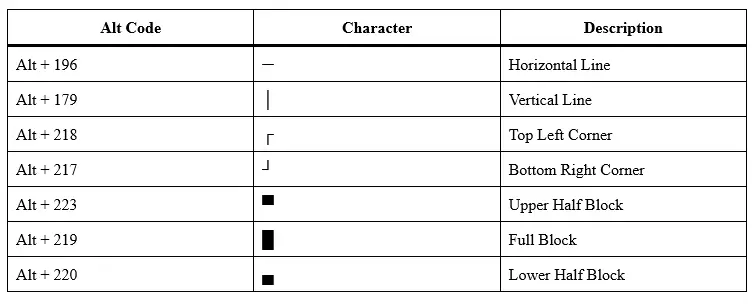
Box Drawing and Shapes
Mathematical and Currency Symbols
| Alt Code | Character | Description |
|---|---|---|
| Alt + 155 | ¢ | Cent Sign |
| Alt + 156 | £ | Pound Sign |
| Alt + 157 | ¥ | Yen Sign |
| Alt + 0131 | ƒ | Function/Florin Symbol |
| Alt + 0178 | ² | Superscript 2 |
| Alt + 0179 | ³ | Superscript 3 |
| Alt + 0247 | ÷ | Division Sign |
| Alt + 0147 | “ | Left Double Quotation Mark |
| Alt + 0148 | ” | Right Double Quotation Mark |
Bonus Tools to Enhance Your Alt Code Experience
Character Map Tool (Windows)
Use the built-in Character Map in Windows:
- Press Windows + R, type
charmap, and hit Enter. - Select the symbol you need.
- Copy and paste it into your document.
Alt Code Cheat Sheet
Keep a printed or digital Alt Code Reference Table nearby for quick access while working.
Pro Tips for Using Alt Codes
- Memorize Common Alt Codes: Focus on high-usage symbols like
©,™,é, and°. - Use Extended ASCII/Unicode Codes: Some codes go beyond 255 using leading zeroes (e.g.,
Alt + 0128for €). - Combine with Fonts: Try different fonts to see how symbols appear. Some fonts offer unique glyphs.
Benefits of Using Alt Code Characters
| Feature | Benefit |
|---|---|
| Expanded Typing | Access characters not found on standard keyboards. |
| Professional Output | Add polish to emails, documents, and reports. |
| Creative Edge | Make social media and design content stand out with visual symbols. |
| Multilingual Support | Type in various languages using accented characters and currency signs. |
Fun Fact: Alt Characters Around the World
Did you know that Alt keys make it easier to type characters from different languages? For instance, French speakers can type ç with Alt + 0231, and German speakers can type ß with Alt + 0223. These shortcuts are invaluable for multilingual communication.
Final Thoughts: Empower Your Keyboard with Alt Codes
Learning how to use Alt characters and Alt codes transforms your typing abilities, giving you access to hundreds of useful and fun symbols. It’s a small but powerful trick for anyone who types, designs, codes, or creates.
So next time you’re stuck typing out “cafe” instead of “café”, or need a quick degree symbol for a weather update, just hold Alt and type away.
Start practicing with your favorite symbols today. You’ll be amazed how much more efficient and expressive your typing becomes!
Great post! ? It’s really helpful to learn how to unlock special characters using Alt codes, especially for those of us who work with documents, design, or coding regularly. I’m sure this guide will come in handy for a lot of people. For those looking for more tech tips, feel free to check out my site Hungry Shark Mods APK. Thanks for sharing this valuable information! ?