


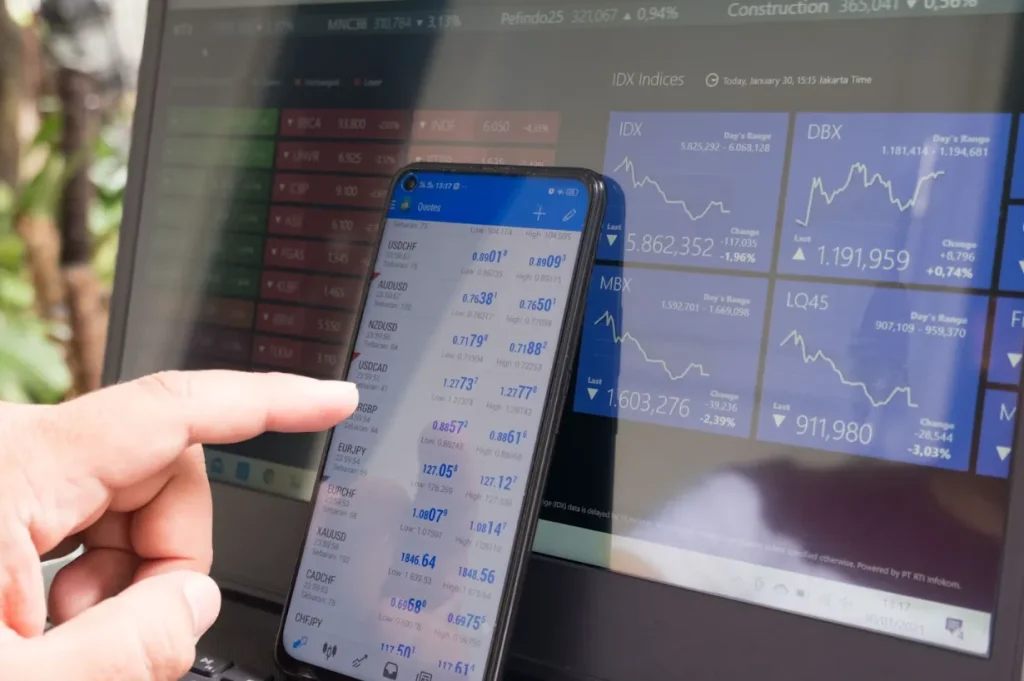
MetaTrader 4 (MT4) is a popular online trading platform known for its user-friendly interface and powerful features. It provides traders with advanced technical analysis tools and flexible trading systems in a simple layout. This guide introduces the MT4 platform for beginners, covering the main interface sections, key features (like indicators, chart types, Expert Advisors, and order types), and a step-by-step walkthrough for placing your first trade. We’ll also include tips and best practices to help you get started confidently.
Overview of the MT4 Interface
The MT4 interface is divided into several sections that organize your trading tools and information. The four main parts of the screen you should know are:
- Market Watch: A panel (usually on the left) listing all available trading instruments (currency pairs, CFDs, etc.) and their real-time bid/ask prices. Prices update continuously during trading hours, and you can quickly open a new chart or place orders from this window. (Tip: If you don’t see a symbol you want, right-click in Market Watch and choose “Show All” or “Symbols” to find it.)
- Navigator: Located under Market Watch, the Navigator window lets you manage your accounts and quickly access your trading tools. Here you can switch between accounts, and expand sections for Indicators, Expert Advisors, and Scripts to apply them to charts. This is essentially your toolbox for analytical tools and automated strategies.
- Chart Window: The chart area (center of the platform) displays price movement for the selected instrument in real time, in your chosen timeframe. Each chart window is highly customizable – you can change its type (candlestick, bar, or line chart), apply technical indicators or drawing tools, and even have multiple charts tiled on the screen. MT4 supports opening an unlimited number of charts and allows you to zoom, scroll, and arrange them as needed. (Tip: Right-click on the chart to access settings, or use the toolbar for quick chart customization like switching timeframes or chart type.)
- Terminal: The Terminal is the bottom panel that acts as your control center for trading activity and account information. It has multiple tabs – Trade (shows your open positions, pending orders, account balance, equity, and margin), Account History (closed trades and historical data), Alerts, Mailbox (messages from your broker), Journal (log of platform events), among others. From the Trade tab in the Terminal you can monitor profits/losses in real time, modify or close trades, and manage pending orders. The Terminal essentially lets you track and manage all aspects of your trading from one place.
Spend some time familiarizing yourself with these interface sections so you can trade freely using your forex trading broker. You can resize or hide panels (using the View menu or the small [X] buttons) to create a workspace that suits you. For example, you might hide the Navigator or Terminal when you want a larger chart view, and bring them back as needed. Knowing how to quickly show/hide these windows (e.g., Ctrl+M for Market Watch, Ctrl+N for Navigator, Ctrl+T for Terminal) can make your workflow more efficient.
Key Features and Tools in MT4
MT4 comes equipped with a variety of features that empower traders to analyze markets and execute strategies. Below are some key tools and concepts every beginner should understand:
- Technical Indicators: MT4 includes a library of built-in technical indicators (approximately 30 indicators are available by default, such as Moving Averages, RSI, MACD, etc.) to help analyze price trends and patterns. You can add indicators to a chart by clicking the Indicators section in the Navigator or using the Insert -> Indicators menu. Beyond the built-ins, thousands of custom indicators are available (many free or paid via the MetaTrader Market) to extend your analysis capabilities. Indicators appear as overlays on the price chart or in separate sub-windows (for oscillators) and can be customized in their settings. (Tip: Don’t overload your charts with too many indicators – start with a few that you understand well, and remember that indicators are tools to aid decision-making, not guarantees.)
- Chart Types: MetaTrader 4 supports three main chart types to visualize price data: Line charts, Bar charts, and Candlestick charts. A line chart connects closing prices over time with a simple line, giving a clean, easy-to-read view of price direction. Bar charts and candlestick charts display the full Open-High-Low-Close (OHLC) data for each period. Bar and candlestick charts convey more information – for example, a bar chart shows each period’s high and low as vertical lines with horizontal ticks indicating the open and close, while a candlestick uses a filled or hollow body plus wicks/shadows to illustrate the same data in a more visual way. Many traders prefer candlesticks for their easy interpretation of bullish/bearish sessions, but you can choose the style that you’re most comfortable with. (Tip: To change chart type, use the chart toolbar or press Alt+1 (bars), Alt+2 (candlesticks), Alt+3 (line). You can also customize chart colors and properties by right-clicking on the chart and selecting “Properties” to make charts clearer to read.)
- Expert Advisors (EAs): Expert Advisors are automated trading programs (often called trading robots) that can run within MT4 to execute trades on your behalf according to predefined algorithms. In simpler terms, an EA is a software plugin that follows a set of rules to place and manage trades without your manual input. Traders use EAs to automate strategies – for example, an EA might be programmed to buy or sell based on certain technical indicator conditions. In MT4, EAs are managed through the Navigator under “Expert Advisors.” You can attach an EA to a chart to activate it (just drag it onto the chart or double-click it in Navigator). When running, the EA will monitor the market and place trades or alerts as coded. Important: MT4 requires you to enable automated trading by clicking the “AutoTrading” button (found on the toolbar) – it must be green (active) for EAs to operate. Always use caution with EAs: ensure you trust the source or, if you coded it yourself, test it thoroughly (MT4’s Strategy Tester can backtest EAs on historical data). EAs can be powerful tools to eliminate emotional trading and run strategies 24/7, but they should be monitored regularly.
- Order Types: Understanding order types in MT4 is crucial for executing trades on market4you the way you intend. The platform supports the following order types:
- Market Order: an order to buy or sell immediately at the current market price. A market order executes instantly – buying at the Ask price or selling at the Bid price. This is used when you want to enter a trade right now. You can attach a Stop Loss or Take Profit to a market order (either at the time of entry or after execution).
- Pending Order: an order to buy or sell in the future when price reaches a specified level. MT4 offers four types of pending orders:
- Buy Limit: an order to buy below the current price (you expect the price to fall to a level then rise from there).
- Sell Limit: an order to sell above the current price (expecting price to rise to a level then drop).
- Buy Stop: an order to buy above the current price (trigger a buy if price continues rising to your target entry).
- Sell Stop: an order to sell below the current price (trigger a sell if price keeps falling to your target entry).
- Buy Limit: an order to buy below the current price (you expect the price to fall to a level then rise from there).
- Pending orders are useful for catching breakouts or entering on pullbacks without having to watch the market constantly. When you place a pending order, it will sit in the Trade tab of the Terminal until price hits the level, at which point the order triggers and opens a position. You can also set an expiration time for pending orders (optional).
- Stop Loss (SL): a protective order attached to an open trade or pending order, used to automatically close the position if price goes against you to a certain point. A stop-loss helps limit your maximum loss on a trade. For a long (buy) position, the SL is placed below your entry price; for a short (sell) position, the SL is above your entry. If price hits the stop-loss level, MT4 will execute an order to close your trade at the next available price, preventing further losses.
- Take Profit (TP): an order to automatically close an open trade when price reaches a favorable level, locking in profit. For a long position, TP is set above the entry; for a short, TP is set below the entry. When the price hits your take-profit point, MT4 will close the trade and realize the gains.
- Market Order: an order to buy or sell immediately at the current market price. A market order executes instantly – buying at the Ask price or selling at the Bid price. This is used when you want to enter a trade right now. You can attach a Stop Loss or Take Profit to a market order (either at the time of entry or after execution).
- Every time you open a new trade (market or pending), you have the option to set Stop Loss and Take Profit levels. It’s considered a best practice to use these orders to manage risk and reward – a stop-loss to cap potential loss, and a take-profit to secure a target gain. You can always modify SL/TP later as the trade progresses. (Tip: MT4 also offers a Trailing Stop feature (accessible by right-clicking on an open position in the Terminal) which automatically adjusts your stop-loss level as price moves in your favor, helping to lock in profits. Use this carefully as it runs client-side on your platform.)